
Instead of manually changing your chiller setting each day, adjust cold plunge temperature automatically through a manufacturer-supported schedule that changes the water-temperature setpoint. This 2026 guide explains how to check compatibility, configure time-based changes, and verify that the water—not just the controller—is ready.
By Editorial Team
A scheduled setpoint is a target temperature, not a promise that the tub reaches that temperature immediately. A cooling-only chiller also cannot actively warm the water when you select a warmer target; it stops cooling and lets the water warm through heat transfer from its surroundings.
- To adjust cold plunge temperature automatically, use a controller with documented scheduled setpoint support.
- Aeva Vital cold plunge buyers should verify chiller compatibility before planning temperature automation.
- Wi-Fi access and power timers do not prove that a chiller supports temperature scheduling.
- Check measured water temperature before entry; a successful command does not establish readiness.
Why this matters
Temperature automation involves separate jobs: issuing a command and changing the water temperature. Your controller handles the command. The chiller, circulation system, water volume, insulation, and surrounding conditions determine what happens afterward.
Schedule the target change before your intended session, using lead time measured on your own setup. Do not copy another tub's cooling time or assume morning and evening settings require equal preparation.
For a connected controller, start with the cold plunge chiller Wi-Fi setup guide. Network access is a prerequisite for cloud-based commands, but it does not establish that the controller accepts scheduled temperature changes.
Before you start
- Equipment and documentation: Have the tub, compatible chiller, circulation components, manufacturer instructions, and a way to check water temperature. Confirm the permitted temperature range and installation requirements for your exact equipment.
- Control access: Have access to the controller and its supported app or automation interface. Confirm that it can write a temperature setpoint on a schedule, rather than merely display temperature or switch power.
- The gotcha: Verify whether the equipment cools only or both heats and cools. A warmer scheduled setpoint cannot actively warm water unless the system has a documented heating function.
For your 2026 setup, keep the exact controller manual beside you. Menu names differ between devices; use the manufacturer's documented scheduling controls rather than treating the descriptive terms below as universal button labels.
If the documentation does not establish scheduled setpoint support, stop at this compatibility check. A reminder to change the setting manually is a valid fallback. Unverified electrical modifications are not.
Temperature-control options at a glance
Choose the control method by what it actually changes. An app connection, a timer, and a thermostat schedule are not interchangeable.
| Control method | Best for | What it does | Advantage | Limitation |
|---|---|---|---|---|
| Native controller schedule | Owners with documented scheduling support | Changes a temperature target at a selected time | Keeps the workflow within the equipment's supported controls | Features and offline behavior depend on the controller |
| Documented automation integration | Owners whose controller exposes supported temperature commands | Sends a setpoint command from an external schedule | Can coordinate temperature changes with other supported events | Adds connection, authentication, and conflict-management requirements |
| Power timer or smart plug | Only installations explicitly approved for timed power switching | Switches electrical power | Provides timed power control where permitted | Does not itself change the temperature setpoint |
| Manual reminder | Owners without supported automation | Prompts you to change the controller yourself | Avoids unsupported control changes | Still requires your intervention |
Prefer the native controller schedule when it meets your requirements. An external integration adds another control layer; use it only when the manufacturer documents the required commands and operating conditions.
Never bypass electrical protection, flow detection, temperature limits, or compressor safeguards to make an automation run.
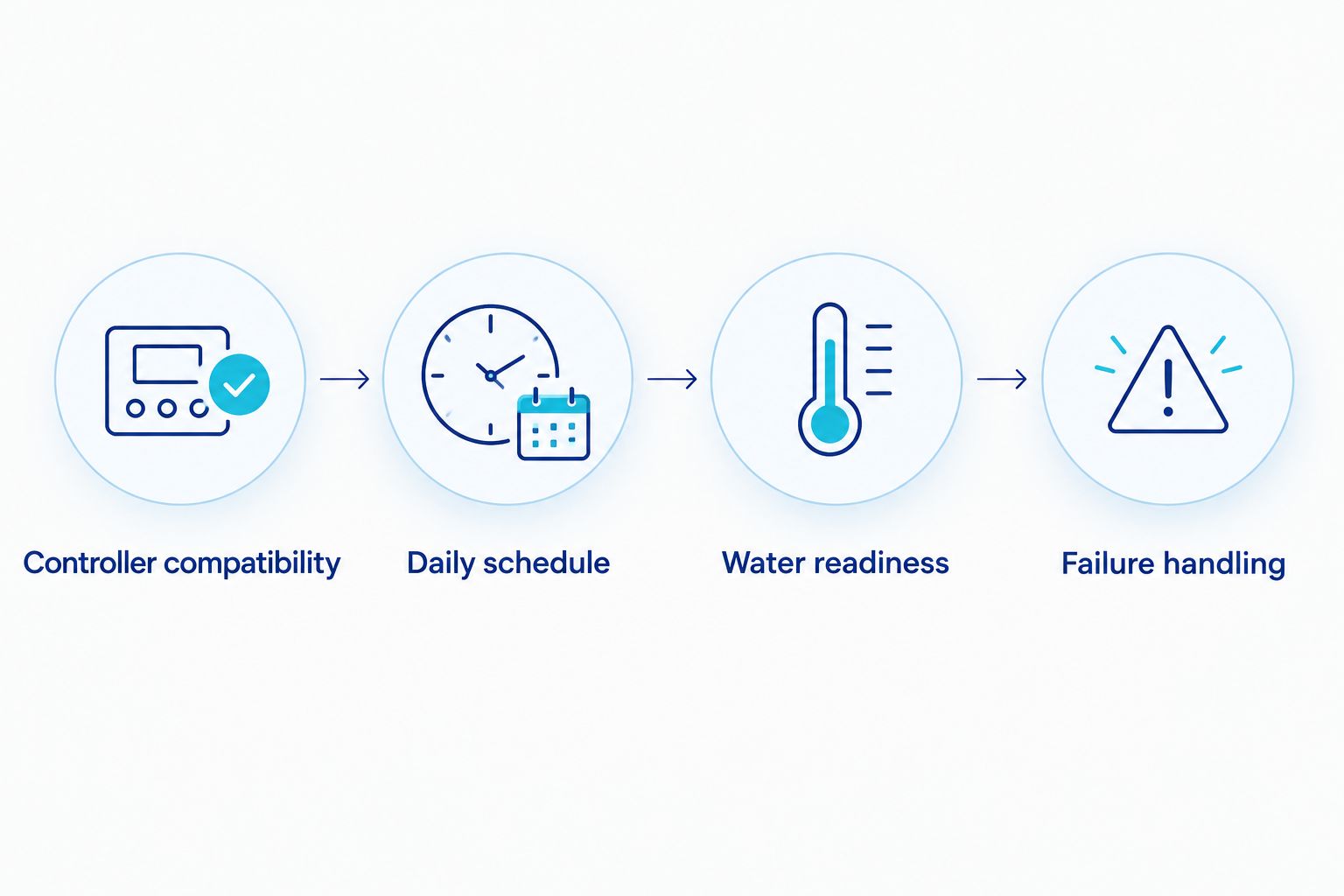
Controller compatibility
- Identify the exact chiller and controller model from the equipment label or manual. Check the controller documentation, not just the tub description.
- Find the documented temperature-setting function. Establish whether remote access can change the target or only read the measured temperature.
- Find the scheduling function or supported integration instructions. Confirm that its scheduled action can change temperature, not merely start or stop equipment.
- Check the installation's temperature unit, permitted operating range, and heating capability. Record these details before creating rules.
- Make a supported manual target change while observing the controller locally. Confirm that the displayed target changes and that normal circulation and fault monitoring remain active.
Expected result: You have a documented way to change the setpoint, a permitted operating range, and a clear distinction between the target and measured water temperature.
If remote commands cannot change the target, the equipment has not passed the automation gate. Do not substitute repeated power cycling for a missing temperature command.
Daily schedule configuration
Build the schedule around intended use, not around an assumed universal cold-plunge temperature. Select temperatures within the equipment's operating limits and appropriate to your circumstances; this guide does not prescribe a medical exposure temperature or duration.
- Open the manufacturer's documented scheduling function. Select the correct chiller if your account contains multiple devices.
- Set the intended local time and repeat days. Check whether the scheduler uses the controller's time zone, your account's time zone, or your phone's time zone.
- Select the supported temperature-setting action. Enter the target in the controller's configured unit, keeping it within the documented range.
- Add a separate target change for another part of the day only if you need one. Keep cooling-only behavior in mind when the later target is warmer.
- Review overlapping rules. Remove duplicate schedules that write different targets to the same controller at the same time.
- Save and enable the schedule through the documented controls. Reopen the saved rule to verify the device, days, local time, temperature unit, and target.
Expected result: Each intended time has one clear temperature command, with no competing rule for the same controller.
Check both your morning and evening entries independently. A correct first rule does not prove that the second uses the same device or temperature unit.
For a 2026 recurring schedule, also check how the scheduler handles daylight-saving changes. Use its documented time behavior rather than assuming a phone clock change updates the equipment.
Water readiness and failure handling
A command can succeed while the water remains above or below your intended temperature. Test the complete workflow before depending on it for a session.
- Run the supported scheduling test, or observe the next scheduled event. Watch for a change in the controller's target temperature.
- Compare the target with the measured water temperature. If the controller provides separate readings, identify which reading represents the actual water.
- Record when the target changes and when the water reaches your intended condition. Repeat under the conditions in which you normally use the tub.
- Move the scheduled command earlier if your observations show that preparation takes longer than your current lead time. Do not extrapolate a fixed cooling rate from a single observation.
- Review documented behavior after a network interruption or power outage. Confirm whether saved schedules remain active and whether a missed event runs later or is skipped.
- Check what happens after a manual adjustment. Establish whether that adjustment persists or whether the next scheduled event replaces it.
Expected result: You know whether the command executed, whether the water reached the target, and what happens when connectivity or power is interrupted.
Check actual water temperature before entry even after a successful schedule run. Automation does not confirm suitability for a particular person, replace water care, or establish that circulation and filtration are functioning correctly.
Change the target when your schedule changes
An adjacent workflow is useful when your session time varies: update the preparation event when your planned session changes. This requires a documented integration capable of receiving the updated event and sending a supported temperature command.
Keep the daily schedule as the simpler default. Use event-based control only if your supported system can manage updates without leaving conflicting commands behind.
- Choose one supported source for the planned session time. Avoid having multiple calendars or routines independently control the same target.
- Configure the documented trigger for a changed session event. Use a preparation offset based on your measured lead time, not an assumed cooling duration.
- Replace or cancel the previous preparation command when the event moves. Check cancellation behavior as carefully as creation behavior.
- Send the temperature command through the supported controller interface. Keep the existing equipment limits and fault responses intact.
- Test a moved session and a canceled session. Confirm that neither leaves an unwanted command active.
Expected result: Changing your planned session changes its preparation command without creating a second, competing schedule.
The limitation is additional complexity. If your integration cannot reliably update or cancel scheduled actions, use the native daily schedule and change it manually when needed.
What Aeva Vital tub specifications establish
The supplied Aeva Vital cold plunge listings identify tank capacities and product types. Those details help compare the tubs, but they do not establish temperature scheduling, chiller compatibility, heating capability, or remote control.
| Listed tub | Best for evaluating | Stated capacity | Useful distinction | Automation limitation |
|---|---|---|---|---|
| Portable Inflatable Ice Bath Tub | Buyers considering a portable inflatable format | 76.6 gallons | The listing identifies an inflatable ice bath | The supplied details do not establish scheduled temperature control |
| 79 Gallon Cold Plunge Tub | Buyers considering an outdoor ice bath with a lid | 79 gallons | The listing title includes a thermo lid | The supplied details do not establish scheduled temperature control |
Water volume matters because changing the temperature of more water requires more heat transfer under otherwise identical conditions. Capacity alone does not establish cooling speed: chiller performance, starting temperature, circulation, insulation, and surrounding conditions also matter.
For a 2026 Aeva Vital cold plunge purchase, verify the tub-and-chiller combination before selecting an automation method. Confirm connections, operating requirements, and controller functions separately. A tub's stated capacity is not a compatibility certificate.


Troubleshooting
- The rule runs, but the target stays unchanged: Confirm that the action writes a temperature setpoint rather than switching power or sending a notification. Check the selected device and controller permissions.
- The target changes, but the water is not ready: Check measured temperature, circulation, controller faults, and observed preparation time. An accepted command is not proof of sufficient cooling.
- The warmer setting does not warm the water: Check whether the equipment has a documented heating function. A cooling-only unit cannot actively heat water to the new target.
- The schedule runs at the wrong time: Check controller and account time zones, repeat days, and daylight-saving behavior. Compare the saved schedule with the local time displayed by the controlling system.
- A manual setting gets overwritten: Look for the next scheduled event or a second integration. Choose one primary scheduling system and use the documented override behavior.
Customize your workflow
Add visibility before adding more control. Where supported, use controller status or notifications to distinguish a sent command, an accepted target, and measured water readiness.
Keep temperature automation separate from maintenance reminders and session records. A completed temperature event does not mean someone entered the tub, and a logged session does not prove that water care is current.
Review the schedule after changing the chiller, water volume, installation location, or normal use pattern. Each change warrants another readiness check rather than an assumed carryover of previous timing.
Related guides
- Connecting a cold plunge tub to a dedicated GFCI outlet
- Infrared sauna to cold plunge workflow
- Automatically logging cold plunge sessions to your fitness app
FAQ
Can I adjust cold plunge temperature automatically by time of day?
Yes, if your controller supports scheduled temperature-setpoint changes or a documented integration that sends them. Verify that function for the exact controller; Wi-Fi access alone does not establish it.
Can a smart plug change my cold plunge temperature?
A smart plug switches power, not the temperature setpoint. Use timed power switching only when the equipment manufacturer explicitly permits the installation and operating method.
Will a warmer scheduled setting heat the water?
Only equipment with a documented heating function can actively heat the water. A cooling-only chiller stops cooling at a warmer target and relies on heat transfer from its surroundings.
How early should I schedule the temperature change?
Use lead time measured on your own installed system. Observe the time between the target change and actual water readiness under your normal conditions.
Does a successful automation mean the plunge is ready?
No, a successful command only establishes that the command executed or was accepted. Check measured water temperature and equipment status before entry.
What happens to the schedule if Wi-Fi disconnects?
Offline behavior depends on the controller and whether the schedule runs locally or through a cloud service. Check the documentation and test the supported interruption behavior before relying on the schedule.
Do the listed Aeva Vital tubs establish automatic temperature control?
No, the supplied tub details establish capacities and product types, not controller scheduling. Verify the exact chiller, connections, and control functions separately.
Can I use different morning and evening temperatures?
Yes, when your supported scheduler accepts separate setpoint events. A cooling-only system still cannot actively raise water temperature for the warmer event.
One last thing
For your 2026 routine, test the warmer transition as carefully as the colder one. The overlooked constraint is heating capability: accepting a warmer target and reaching warmer water are different outcomes. Keep that distinction central when evaluating Aeva Vital home wellness equipment.