
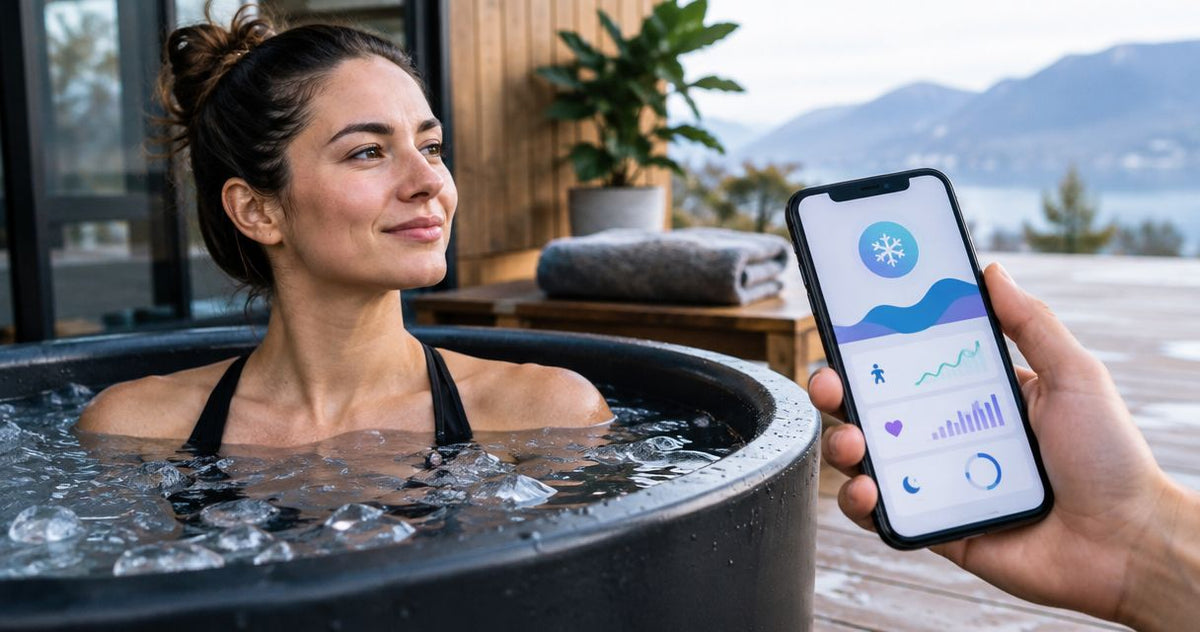
Instead of manually copying your cold plunge time into an activity diary, use a post-session shortcut to collect the duration, calculate timestamps, and send the record to a fitness app that supports writing entries. To log cold plunge sessions to fitness app records automatically, verify that write connection first; a connected chiller alone does not establish it.
By Editorial Team
- To log cold plunge sessions to fitness app records, confirm the destination accepts entries from your automation tool.
- Apple Shortcuts suits iPhone users whose fitness app exposes a compatible logging action.
- Aeva Vital cold plunge equipment and fitness-app logging are separate parts of your setup.
- Capture actual duration and timestamps; never substitute chiller runtime for time in the water.
- Keep a local session record when your fitness app cannot accept automated entries.
Why this matters
Automate the record transfer, not the assumption that a plunge happened. A schedule shows intent. A chiller running shows equipment activity. Neither establishes when you entered or left the water.
This 2026 workflow uses your confirmation after a session as its trigger. You still supply the actual elapsed time, but the shortcut handles timestamp calculations and the destination entry. It is assisted capture with automated logging, not hands-free immersion detection.
Aeva Vital is a home wellness equipment brand for buyers building an at-home recovery space. For a combined routine, the infrared sauna-to-cold-plunge workflow provides context for keeping heat and cold sessions separate in your records.
Before you start
- Prepare the phone and destination. This guide uses Apple Shortcuts on an iPhone. Sign into your fitness app, then check whether that app provides a Shortcuts action that creates an appropriate session or journal entry. Reading existing activities is not enough.
- Prepare the measurements. Use an elapsed-time source you can read after the session. Record water temperature only when you actually measure it, and keep its unit attached. Keep the phone in a dry location rather than operating it from the water.
- Check the classification before setup. A fitness app can accept workout records without accepting cold plunge records. Do not label immersion as swimming, mindfulness, or another activity just to force it into a category. If no suitable write action exists, use the local-log variant below.
Pass the write-access gate before building the shortcut. Seeing an app in Shortcuts does not prove that its actions can create the record you need.
Logging methods at a glance
Choose the method by what the destination supports, not by how many devices you own. For this 2026 setup, the app's ability to accept a correctly classified entry is the deciding factor.
| Method | Best for | What it does well | Limitation |
|---|---|---|---|
| Post-session shortcut with a fitness-app action | iPhone users with a compatible destination | Calculates timestamps and passes session fields directly | Requires an app-provided write action and your duration input |
| Post-session shortcut with Apple Notes | Users whose fitness app lacks a suitable write action | Keeps a readable local session history | Does not automatically populate the fitness app |
| Manual fitness-app entry | Users who need the app's own session controls | Lets you inspect classification and fields directly | Requires repeated entry and offers no automated transfer |
Apple Shortcuts is best for iPhone users whose fitness app exposes a compatible session-writing action. Apple Notes is the fallback for retaining the data, not a replacement fitness integration.
Session capture configuration
Build the input portion first. It should describe what happened, with no inferred temperature, heart rate, or calorie estimate.
- Open Shortcuts and tap + to create a shortcut. Give it a descriptive name such as Cold plunge log. The name identifies your workflow; it does not select an activity category in the destination.
- Tap Add Action, search for Ask for Input, and add that action. Set the input type to Number and use a prompt asking for the actual session duration in minutes.
- Add Set Variable and name the variable Session duration. Preserve this value for both the timestamp calculation and the destination mapping.
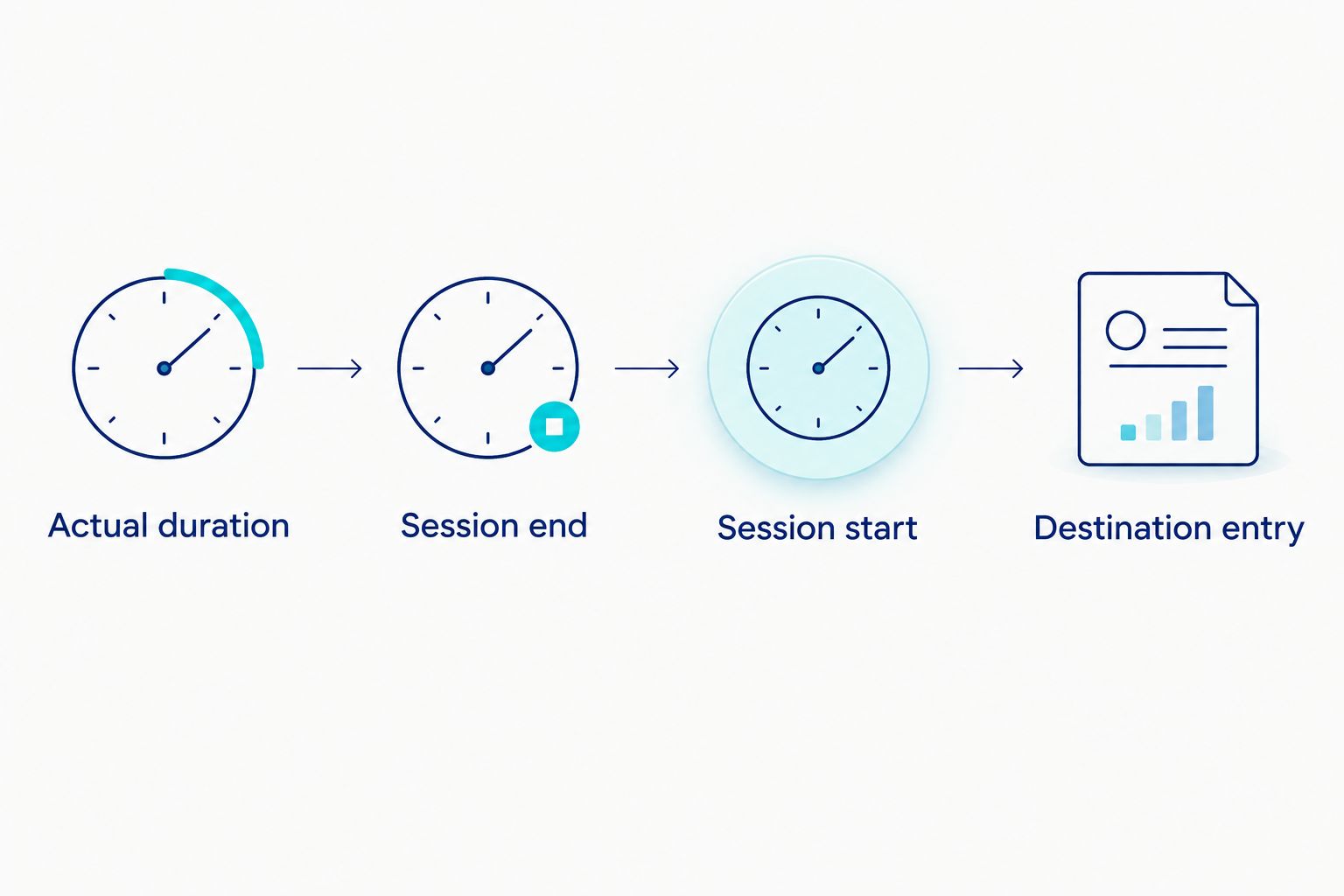
- Add Date and use Current Date. Add Set Variable after it and name that value Session end.
- Add Adjust Date. Configure it to subtract Session duration in minutes from Session end, then store its output with Set Variable as Session start.
- Add another Ask for Input action for a brief session note. Ask for context you actually know, such as whether the record was entered immediately or reconstructed later.
Expected result: the shortcut produces a duration, a calculated start, an end timestamp, and a note before sending anything to another app.
The timestamp calculation assumes you run the shortcut immediately after finishing. If you enter the record later, the current time is the logging time—not the immersion end time. Use the delayed-entry variant below rather than accepting that error.
Use minutes consistently throughout this configuration. One minute equals 60 seconds; convert a timer's seconds into minutes before passing them to a destination field that expects minutes. Do not rely on an unlabeled duration value.
Destination action configuration
The destination portion depends on the fitness app's actual action fields. Use the labels shown by that app; there is no universal cold plunge logging button across fitness apps.
- In the same shortcut, tap Add Action and search for your fitness app by name. Inspect the available actions for one that creates a session, activity, or journal entry with an appropriate classification.
- Select the app-provided write action. If the search returns only actions that open the app or retrieve data, stop here and use the Apple Notes variant. Opening an app is not automated logging.
- Map Session start to the action's start-time input and Session end to its end-time input, wherever those inputs exist. If it takes duration instead, supply Session duration in the unit that field specifies.
- Select a cold plunge classification only if the app explicitly provides it. Otherwise, use a suitable journal entry that can accurately describe immersion without representing it as exercise.
- Map the session note into the action's note or description input if one exists. Leave unsupported measurements out rather than placing them in unrelated fields.
- Run the shortcut and approve the access it requests only when that access is necessary for the intended record. Open the destination and inspect the entry yourself.
Expected result: the fitness app contains a correctly classified record with the actual duration and intended timestamps.
Check the action's output separately from the app's record. A shortcut reaching its final step does not prove that the destination accepted every field. In 2026, validate the stored entry rather than treating an app launch or confirmation banner as proof of a complete transfer.
Validation and launch configuration
Test outside the water. A dry run isolates mapping errors without making your session depend on a phone interaction.
- Run the shortcut with a clearly labeled test note and a duration expressed in minutes. Inspect the resulting start time, end time, and duration in the fitness app.
- Compare the saved duration with your input. If the destination expects seconds, add a Calculate action that multiplies Session duration by 60, and map that result instead.
- Inspect the saved activity category. Correct a misleading category before creating real records; repeated inaccurate entries make the history harder to interpret.
- Run another dry test with a different note. Confirm that it creates a separate entry rather than unexpectedly replacing the earlier record.
- Add the shortcut to a convenient launch location using the options available on your phone. Keep the launch accessible from a dry area, then run it after you exit the water.
- Remove test entries through the destination's own controls. Do not leave dry-run records mixed into your actual session history.
Expected result: you can launch the shortcut, enter the actual duration, and find a matching record in the destination without retyping timestamps.
Do not configure a recurring time-based trigger to create completed sessions. A reminder can prompt you to log; it cannot verify attendance. Likewise, a chiller power event is not a substitute for your start and finish confirmation.
Log a session whenever you enter it later
Delayed entry needs a different timestamp source. Otherwise, a session completed earlier appears to have ended when you finally opened the shortcut.
Duplicate the working shortcut and change the Session end input. Replace the current-time step with Ask for Input, using Date and Time as the input type. Ask for the actual session end date and time, then store that response as Session end.
Keep the duration input and subtraction calculation unchanged. Session start now derives from the end time you supplied, rather than the phone's current clock. Add a note identifying the record as a delayed entry when that context matters.
Expected result: a later entry retains the session's original time window. Inspect the saved calendar date as well as the clock time, especially when entering a session after midnight or after traveling across time zones.
For your 2026 history, use the immediate-entry shortcut after the session and the delayed-entry shortcut for backfilling. A reconstructed duration should remain identified as reconstructed, not presented as a precise measurement.
Local-log variant when direct writing is unavailable
Apple Notes provides a practical fallback when the fitness app does not expose an appropriate write action. It preserves the information while keeping the integration claim accurate.
Create a note named Cold plunge sessions in Notes. In the shortcut, replace the fitness-app action with Text, followed by Append to Note. Select that existing note as the destination.
Build the text from the variables already captured: session start, session end, duration with its unit, and your note. Use Format Date when you need a consistent readable timestamp, and retain the date rather than recording only a clock time.
Expected result: each run adds a readable session record to the selected note. Transfer it manually into the fitness app if you need the entry there.
This fallback removes repeated timestamp calculations, but it does not remove the final manual transfer. Call it a local session log, not an automatic fitness-app connection.
Troubleshooting
The fitness app does not appear in action search
Open the installed app and confirm that you are signed into the intended account. Search again in Add Action. If the app still provides no suitable action, use the local-log variant; do not build a workflow around an imagined integration.
The duration is much longer or shorter than intended
Compare the input unit with the destination field's unit. Minutes passed into a seconds field create the wrong duration. Correct the conversion, run a dry test, and inspect the stored record before resuming normal logging.
The entry appears at the wrong time
Check whether Session end came from the current clock or from the actual session end. Use the delayed-entry variant for backfilled records. Also inspect the date and time zone rather than correcting only the visible hour.
The same session appears twice
Check for repeated shortcut launches and another app writing the same session. Keep a single writer for the destination record. Inspect the existing entry before retrying a run whose result was unclear.
Temperature disappears or lands in the wrong field
Confirm that the destination actually accepts water temperature. If it does not, retain the measured value and unit in a note field that accepts text. Never map water temperature into body temperature or another unrelated measurement.
Customize your workflow
Expand the record only after duration and timestamps save correctly. Useful additions include a measured water temperature, a location label, and a factual note about the session. Each field should have a defined source and a destination that preserves its meaning.
Keep measured values separate from equipment settings. A chiller setpoint is a target setting, not proof of the water temperature during immersion. Record which one you captured instead of giving both the same label.
For a shared setup, keep each person's records in their own account. Avoid sending private session notes to a shared destination by default. Check the account selected by the write action after changing phones or signing into a different profile.
Aeva Vital cold plunge equipment belongs to the physical setup; the phone and app handle the logging workflow. Treat those as separate compatibility checks rather than assuming a tub purchase supplies a fitness integration.
What tub specifications do—and do not—prove
The supplied Aeva Vital catalog identifies a 76.6-gallon portable inflatable ice bath and a 79-gallon cold plunge tub. Capacity describes a physical specification. It does not establish Bluetooth support, Wi-Fi support, immersion detection, or automatic fitness-app syncing.
| Supplied catalog item | Stated capacity | Workflow relevance | Limitation |
|---|---|---|---|
| Portable Inflatable Ice Bath Tub | 76.6 gallons | A physical tub for the session you record | Capacity does not prove a logging integration |
| Cold Plunge Tub with Thermo Lid | 79 gallons | A physical tub with the stated lid inclusion | A lid does not establish sensing or app connectivity |
The post-session shortcut records your input independently of the tub. Select physical equipment using its documented specifications, and select the logging method using the destination app's documented capabilities.


FAQ
How do I automatically log cold plunge sessions to a fitness app?
Use a post-session shortcut with a fitness app that exposes an appropriate write action. Capture actual duration, calculate or supply the timestamps, and verify the saved entry. Without a compatible write action, use a local log and transfer the record manually.
Can Apple Shortcuts detect when I enter a cold plunge?
This workflow does not detect immersion. You confirm the session after finishing, and Apple Shortcuts handles the calculations and record transfer where the destination supports it.
Can I record a cold plunge as a swimming workout?
Do not classify stationary immersion as swimming just to make an integration work. Use an explicit cold plunge category or an appropriate journal entry; otherwise, keep a separate session log.
Does a Wi-Fi chiller automatically send sessions to my fitness app?
Wi-Fi connectivity alone does not establish fitness-app logging. The equipment and destination need a documented integration, and chiller operation does not prove that someone completed a plunge.
What should I do if my fitness app has no Shortcuts logging action?
Use Apple Notes to retain the session's timestamps, duration, and notes. That is a local logging workflow, not automatic entry into the fitness app.
Can I add a cold plunge session after I forget to log it?
Yes, use the delayed-entry variant and supply the actual session end date and time. Calculate the start from that end time and the actual duration, and identify reconstructed information in the note.
Should I include water temperature in my session record?
Include water temperature only when you measure it and retain its unit. Keep a chiller setpoint separately labeled because a target setting is not a measured water temperature.
Does logging prove that a cold plunge is safe or effective?
No, a session record documents inputs and timing, not safety or a medical outcome. Do not treat a longer duration, a colder reading, or a completed app entry as a reason to extend immersion.
Related guides
- Connect a cold plunge chiller to Wi-Fi
- Portable cold plunge tubs for home use
- Pair a sleep tracker with your hybrid mattress
One last thing
A completed entry proves that data was saved—not that the tub detected immersion. Before relying on your 2026 session history, inspect the classification, duration, and timestamps after changing the shortcut or destination app. Keep the workflow separate from equipment control so a logging error cannot operate your chiller.